




 138
138
Overview
This article provides instructions for NTT personnel on how to reset their Okta password, before expiration, using the company Okta portal. Resetting your password in advance helps prevent access issues with company systems, applications, and managed devices.
MacOS users enrolled in device management have an additional required step to ensure the new Okta password syncs correctly with their local computer login.
Okta Portal Access
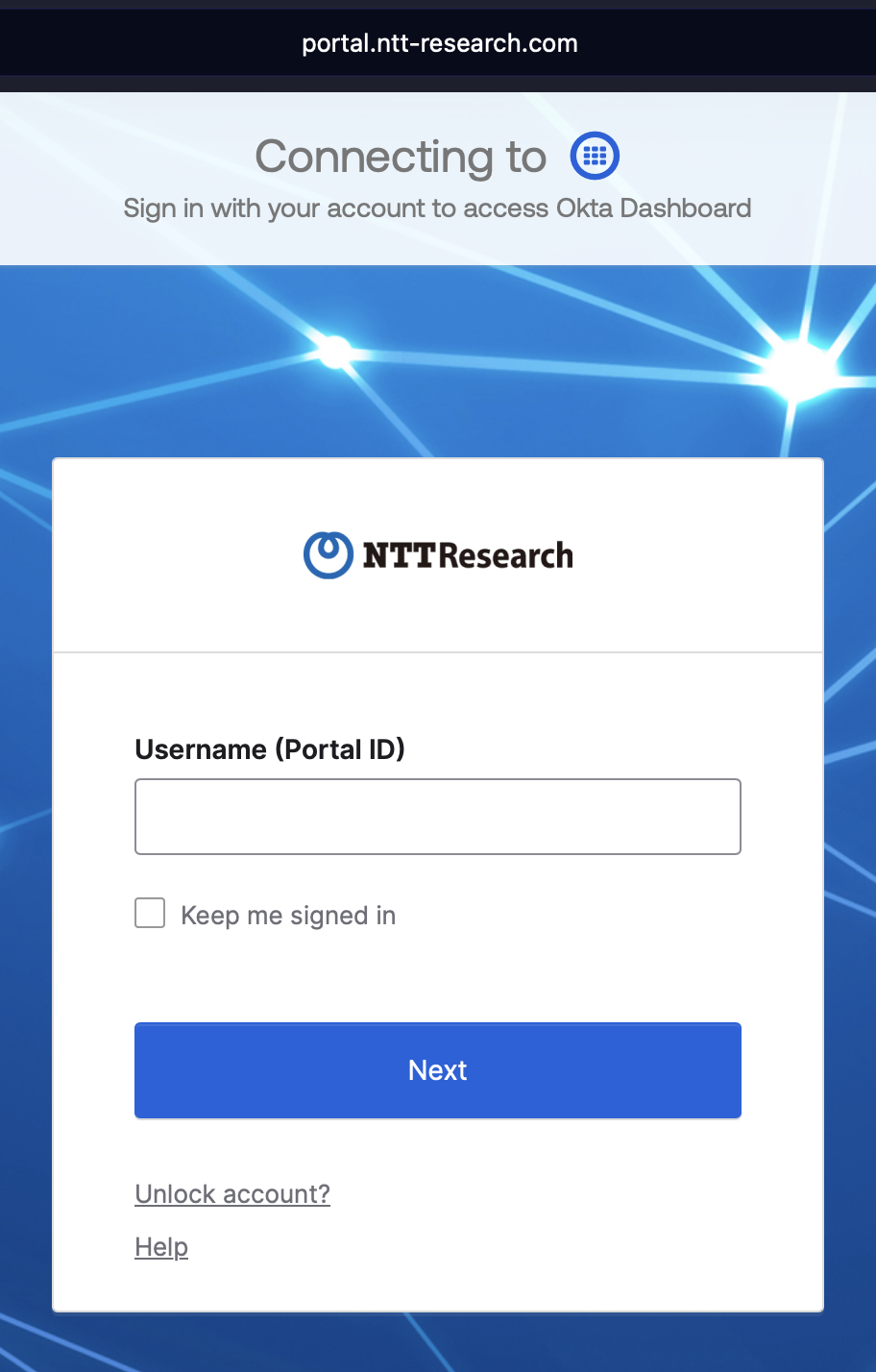
Portal URL: https://portal.ntt-research.com
Username: Your 8-digit, numeric, Okta ID (Email addresses cannot be used in place of the Okta ID.)
Authentication: Password plus two-factor authentication
How to Reset Your Okta Password
1. Open a web browser and navigate to https://portal.ntt-research.com
2. Sign in using your 8-digit Okta ID and current password.
3. Complete two-factor authentication when prompted.
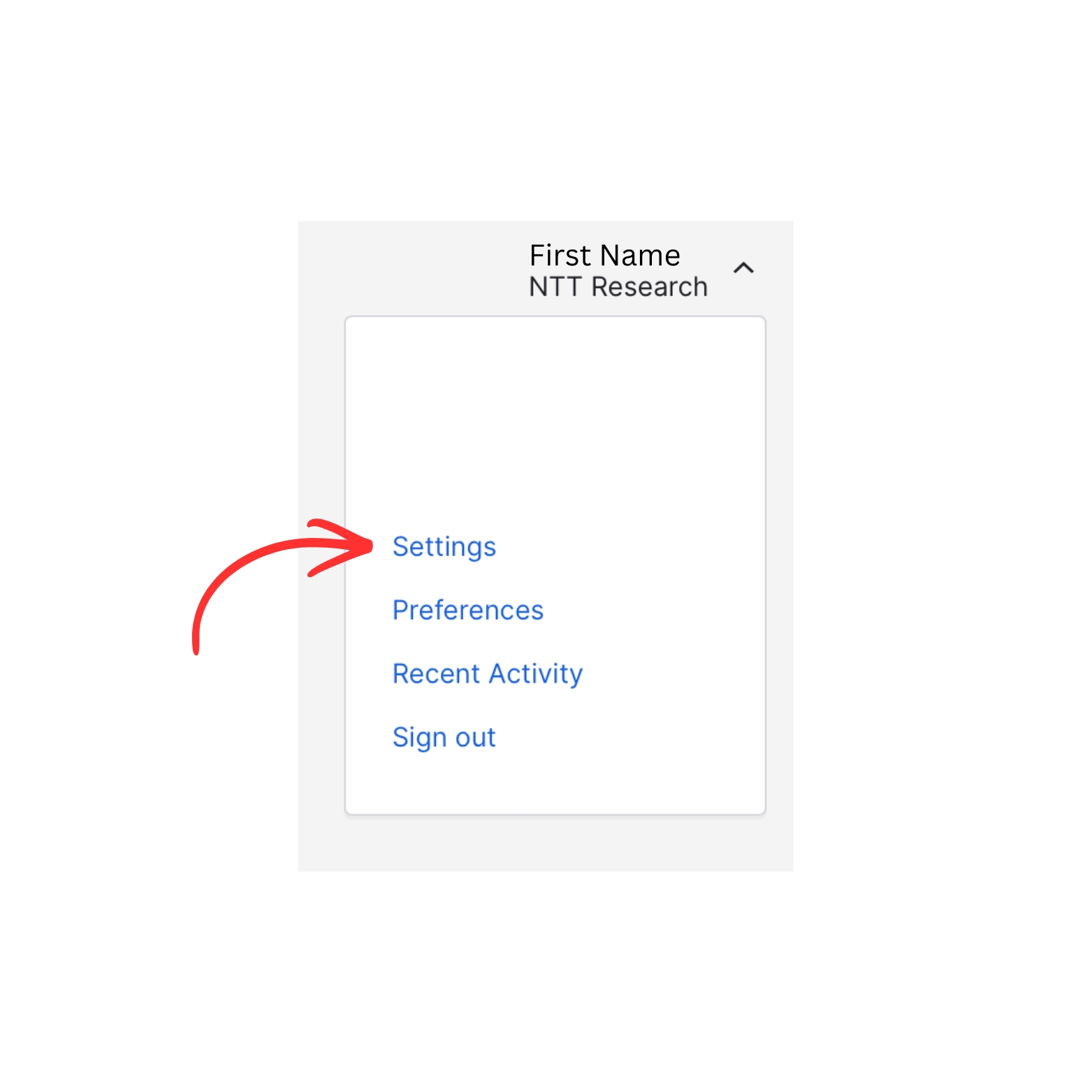
4. Click your name in the top-right corner of the portal.
5. Select Settings.
6. Under Security Methods, locate Password and select Reset.
7. Follow the on-screen prompts to create and confirm a new password.
NOTE: After completing the reset, remain signed in until you see confirmation that the password update was successful.
Important macOS Users – Kandji Passport
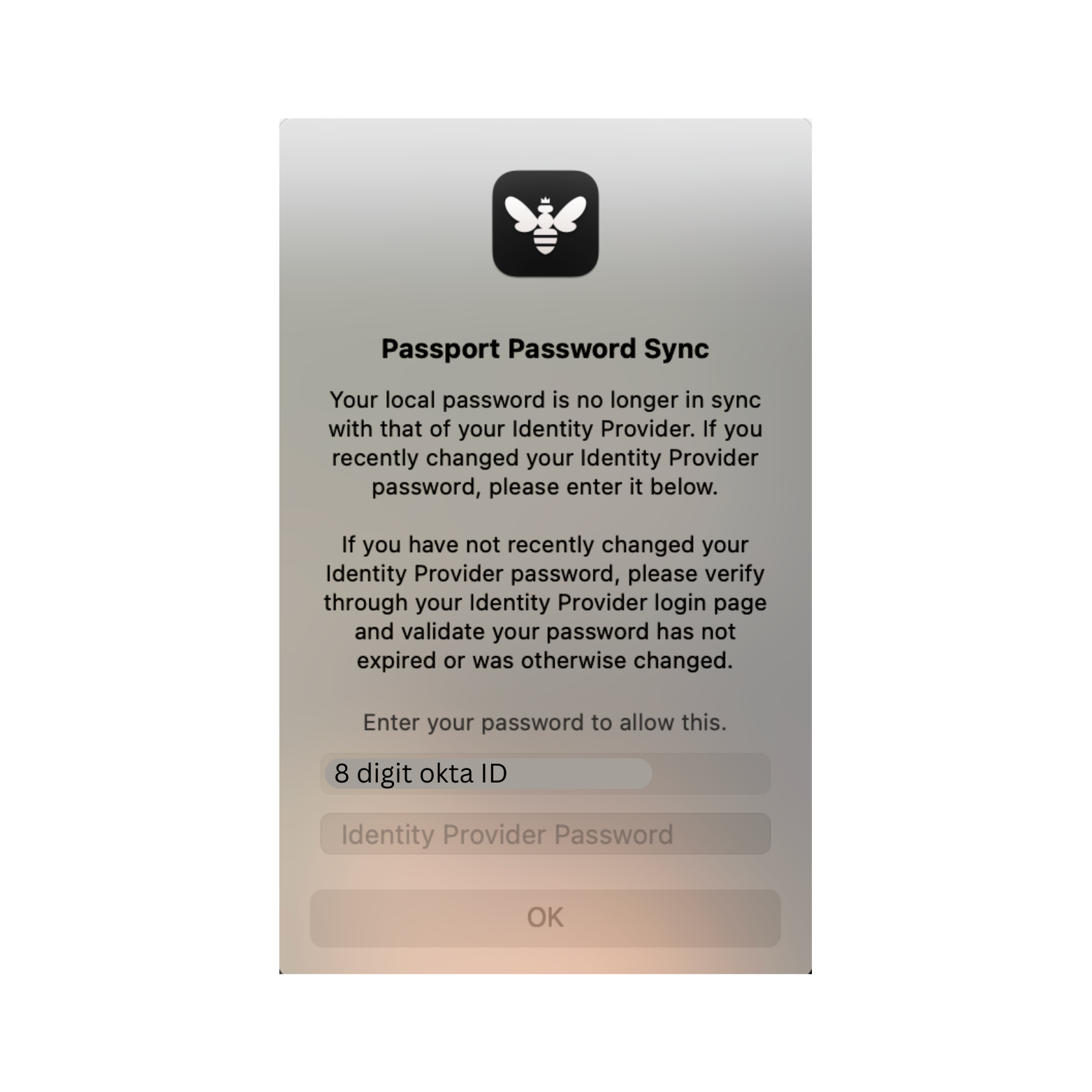
After resetting your Okta password, macOS users will see a Kandji Passport window appear shortly after. When prompted, you must enter your new Okta password to sync it with your local macOS user account.
This step ensures your Mac login password, FileVault, and local authentication remain functional.
Troubleshooting
Verify that you are using your correct 8-digit numeric Okta ID.
If you can sign in to Okta but cannot log in to your Mac, ensure you completed the Kandji Passport prompt using your new Okta password.
Restart your computer if the Kandji Passport window does not appear.
Contact IT at [email protected] if you are unable to complete the password reset.

