




 1656
1656
Overview
This document provides instructions for NTT personnel and authorized users on how to download the STid Mobile ID application on iOS and Android devices and activate a virtual access card after receiving an official invitation from NTT via the STid Mobile ID system. Once activated, a mobile device may be used in place of a physical access badge to access NTT facilities.
Prerequisites
• You have received an activation email or SMS sent on behalf of NTT via the STid Mobile ID system
• You have a compatible iOS or Android smartphone
• Your device has an active internet connection
• Bluetooth is enabled on your device
Step 1: Download the STid Mobile ID Application

iOS (iPhone)
• Open the Apple App Store
• Search for STid Mobile ID
• Select Get and authenticate if prompted
• Once installed, open the application
Android
• Open the Google Play Store
• Search for STid Mobile ID
• Select Install
• Once installed, open the application
Step 2: Open Your Activation Invitation
• Locate the activation email or SMS sent by NTT
• Select the activation link in the message
• The link will automatically open the STid Mobile ID application. If the app is not installed, you will be redirected to the app store first.
Step 3: Activate Your Virtual Access Card
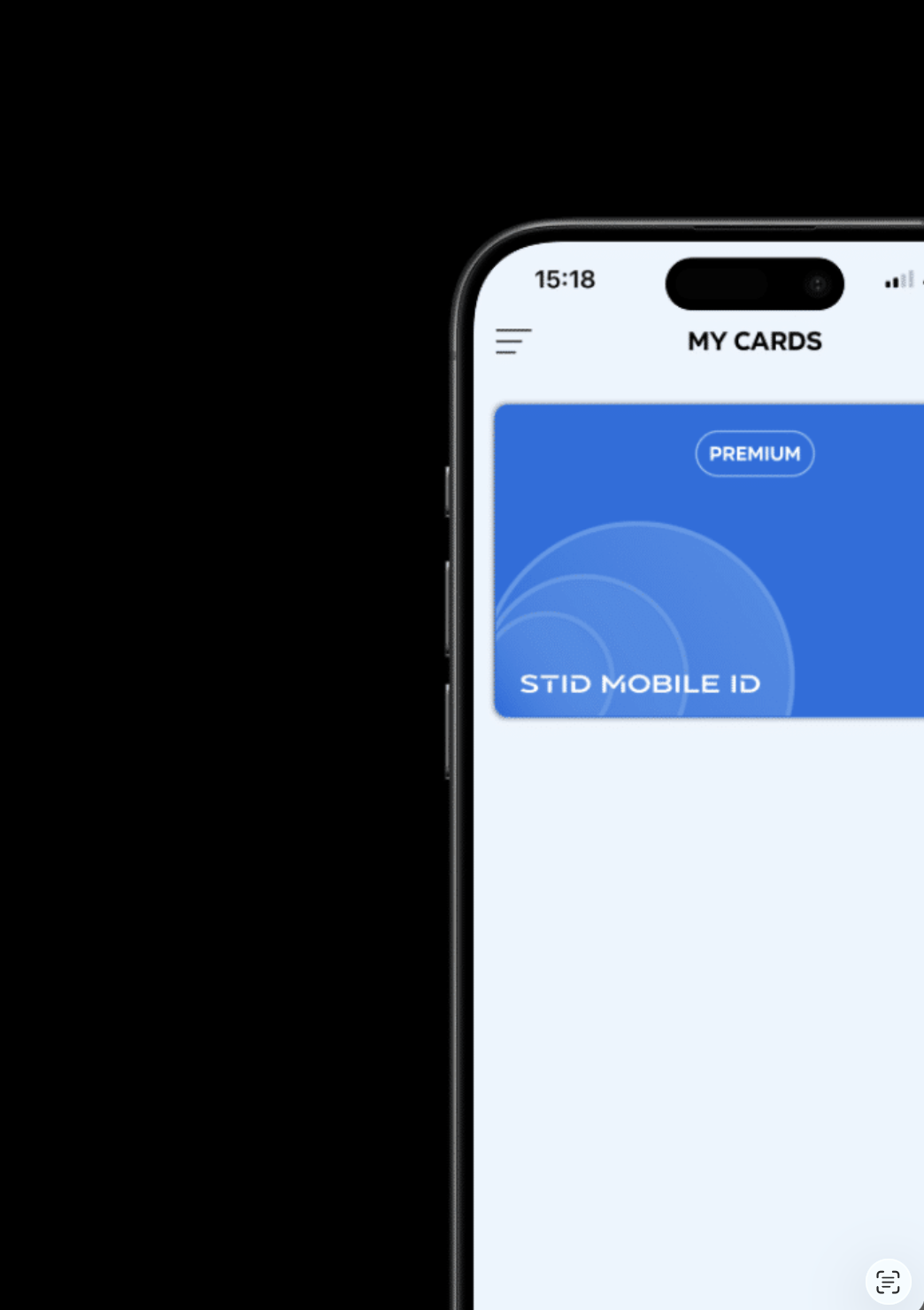
• Select Activate my card when the application opens
• Allow Bluetooth and notification permissions when prompted. These are required for reliable access and badge status updates.
• Follow the on-screen instructions to complete activation
• Confirm that the virtual card appears in the application
Step 4: Using Your Mobile Device for Access
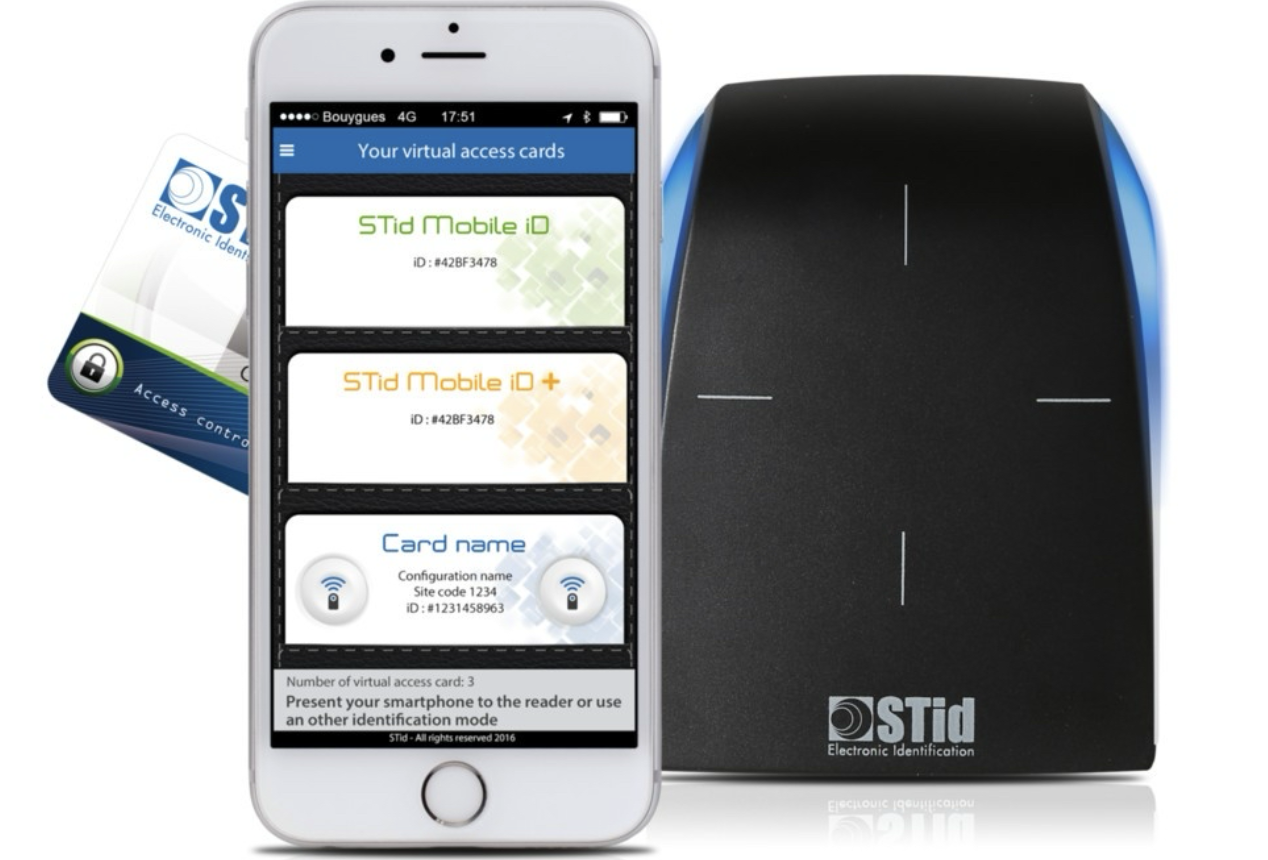
• Hold your phone near the access reader for 1–2 seconds while the reader determines access (blue) and then access is granted (green) or denied (red).
• In some locations, hands-free access may be supported
• The application does not need to be open unless otherwise instructed
Troubleshooting
Invitation not received: Check your spam folder and confirm your contact information is correct. If the invitation is still missing, contact NTT FBO Support.
Virtual card not appearing: Ensure you used the same email or phone number that received the invitation. Restart the application or device if necessary.
Reader does not respond: Confirm Bluetooth is enabled and wake the phone screen before approaching the reader.
Additional Information: Device Changes or Upgrades
STid Mobile ID virtual access cards are device-specific and cannot be transferred between phones.
If you have:
-
Replaced your phone
-
Upgraded to a new device
-
Performed a factory reset
-
Reinstalled the operating system
Your existing STid Mobile ID badge will no longer function on the new device.
Required Action
To restore access on a new or upgraded device:
-
Email [email protected]
-
Request that your STid Mobile ID invitation be resent
-
Once received, follow the installation and activation steps outlined in this document
A new activation link is required each time a device is changed.
Important Notes
-
Transferring the badge to others or from an old phone to a new phone is not allowed or supported
-
Self-service transfer or recovery of a mobile badge is not supported.
-
The original virtual card will be revoked once a new invite is issued
-
This is a security requirement to protect physical access to NTT facilities
Support
For additional assistance, contact NTT Facilities Support at [email protected] and reference STid Mobile ID activation.

